AI Photo Lab: Generate & Edit
- 3.7
- Rating
- 1.00M
- Installs
- Free
- Price
 Analysis by App-foxy
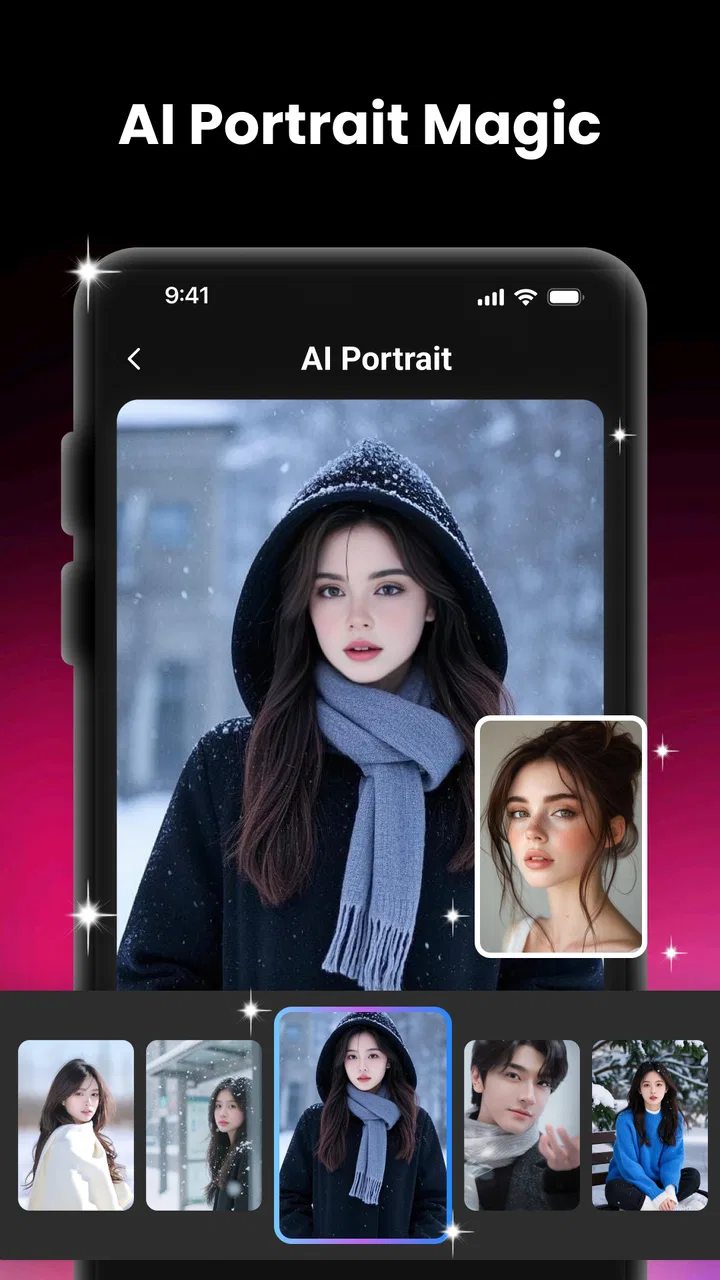
AI Photo Lab: Generate & Edit is the kind of photography app I would open when I want to turn an ordinary portrait into something more imaginative without spending time learning a complicated editor. It comes from BaseGroup and focuses on AI-assisted portraits and photo editing rather than traditional manual adjustments. My first impression is that it is aimed at quick visual experiments: start with a familiar face, try a creative treatment, compare the result, and decide whether it is good enough to share.
That focus makes it easy to understand, but it also sets the right expectations. I would not treat it as a complete replacement for a professional retouching suite. I see it more as a fast creative layer that can help when the original image feels flat, when I need a profile picture with more personality, or when I want to explore several visual directions before choosing one. The app is free, rated for Everyone, and its broad audience makes sense because the basic idea is approachable even if the best results still depend on choosing a suitable source photo.
Starting with the right creative idea
The most important decision happens before the AI does any work: choosing the image and deciding what I want the final picture to communicate. A clear, well-lit portrait gives the app a much better starting point than a dark group photo, a face hidden behind sunglasses, or an image where the subject is turned sharply away from the camera. That is not a special trick limited to this app; it is simply the reality of portrait-focused AI editing. The tool can reinterpret an image, but it cannot reliably recover details that were never visible.
You May Also Like

 Blood Strike: 2.5 Anniversary
Blood Strike’s Loadouts Turn Every Drop Into a Tactical Gamble
A close look at Blood Strike’s custom loadouts: how fast access to signature weapons reshapes its battle royale rhythm, rewards preparation, and narrows the gap between fights.

 Pandora - Music & Podcasts
Pandora’s Music Is Easy to Start, but Harder to Recover
Pandora’s strength is its low-effort path from a seed to a station. Its weak spot is how much confidence it asks you to place in connection, setup, and quiet recovery.

 8 Ball Pool
 Is Built on Rivalries, Rematches, and Routine
A close look at the rivalries, rematches, shared routines, and unanswered safety questions that turn a quick pool match into a persistent mobile community.

 Samsung Music
’s Quiet Strength Is Playing What You Already Own
Its reach comes less from spectacle than from dependable access to a personal library. That simplicity is both the app’s strongest retention engine and its ceiling.

 AccuWeather: Weather Radar
AccuWeather Review: A Quick, Clear Forecast for Everyday Decisions
For everyday plans, the best forecast is the one you can understand quickly. AccuWeather makes rain timing, radar, and local conditions easy to act on, with a few trade-offs.

 Hill Climb Racing
Why Hill Climb Racing Still Turns Crashes Into One More Run
A tiny car, a bumpy hill and one more upgrade: Hill Climb Racing keeps resurfacing because its simple chaos makes every near-miss feel personal.
More From Our News Desk



I find the app most useful when I begin with a specific purpose. For a social profile, I might want a cleaner, more expressive portrait that still looks recognizably like me. For a creative post, I may be more willing to accept a dramatic change in color, mood, or visual style. Those are different goals, and treating them as the same usually leads to disappointment. A result that looks entertaining in a private experiment may be too artificial for a professional profile.
One practical workflow is to prepare several source images before opening the editor. I would choose one close-up, one with a little more background, and one with a different expression. This gives me options if the first attempt produces an awkward crop or an unconvincing interpretation. It also prevents me from repeatedly forcing one unsuitable image through different treatments and then blaming the tool for results caused by the source.
The app’s appeal is strongest for people who want a creative starting point rather than a blank canvas. Traditional photo editors are excellent when I already know exactly how much brightness, contrast, sharpness, or color adjustment I want. An AI portrait tool is more useful when I have a rough idea—something more polished, cinematic, playful, or unusual—but do not want to build that look manually from individual controls.
There is also a useful distinction between making a portrait and fixing a portrait. If the original picture has a small compositional problem, such as a dull mood or an uninspiring presentation, an AI treatment can make it feel new. If the main issue is severe blur, poor focus, distracting objects, or an expression I dislike, a style change may only disguise the problem. I would correct the source first in a conventional editor when possible, then use the AI layer for interpretation.
Who gets the most from the creative starting point
Casual photographers, social media users, and anyone who enjoys visual experimentation are the natural audience. I can imagine using it for a new avatar, a birthday image, a themed post, or a quick concept for a personal project. It is also useful for someone who wants to see several possible directions before committing to a more careful edit elsewhere.
I would be more cautious recommending it to photographers whose work depends on preserving exact identity, natural skin texture, or fine facial details. AI portrait processing can be attractive precisely because it changes the image, but that same change may be a problem when authenticity matters more than novelty. A family record, a formal business portrait, or a client image may call for restrained editing instead.
The app is available for Android devices running version 7.0 or later, which covers a wide range of older and newer phones. That broad compatibility is convenient, although compatibility alone does not guarantee an equally smooth experience on every device. AI image work can feel more comfortable on a recent phone with a good screen and enough free storage, especially when I am comparing several versions of one image.
How I approach the making process
Once I have selected a portrait, I treat the first generated result as a draft, not a final answer. This is one of the biggest mindset differences between AI editing and ordinary sliders. With manual editing, I can often predict what a small adjustment will do. With AI tools, the result can shift more broadly, so I look at the whole image: face shape, eyes, hair, background, lighting, and whether the subject still feels like the person in the original.
The store summary presents the app as a place to create AI portraits and edit photos with AI tools. In practical terms, that suggests a workflow built around transformation rather than painstaking correction. I would use it to explore a concept quickly, then judge the output with a critical eye. The attractive first impression is not enough; the image needs to survive a closer look at the details that matter to the intended audience.
A useful habit is to compare the generated image with the original immediately, rather than relying on memory. AI treatments can make a portrait appear more impressive simply because it is different. Side-by-side comparison helps me notice whether the improvement is real or whether the app has only increased drama. I check whether the eyes remain natural, whether the mouth has changed in an odd way, and whether hair edges or earrings have become confused with the background.
For a realistic everyday scenario, imagine that I need a new profile image before joining an online group. I could choose a clear head-and-shoulders photo, try an AI portrait treatment, and inspect whether the result still looks approachable. If the face becomes too stylized, I would return to the original and choose a gentler direction. If the treatment improves the lighting and gives the image a stronger visual identity without making me look like a different person, it may be ready for a profile crop.
That scenario also shows why I would avoid editing only one copy of the source. I keep the original untouched and treat each AI result as a separate version. This matters because a creative transformation can be difficult to reverse once it becomes part of a saved image. Keeping the source gives me a safe fallback for a different platform, a more natural edit, or a later project.
Small choices that improve the result
My first concrete tip is to crop with the final destination in mind before judging the image. A portrait that looks balanced in a full-screen preview may lose the eyes or forehead when used as a square avatar. I would inspect the composition at the size where people will actually see it. If the subject is too close to an edge, the AI result may look fine in the editor but awkward after publishing.
My second tip is to avoid over-processing a face simply because the effect is available. The most memorable result is not always the most usable one. For a public profile or work-related image, I prefer a transformation that keeps recognizable features and a believable expression. For a private creative post, I can push further. Separating those two goals helps me choose with more discipline.
My third tip is to use expression and background as part of the concept. A neutral face against a plain wall may work well for a polished portrait, while a more expressive source can support a playful result. If the background has strong lines, bright objects, or other people, an AI reinterpretation may give those elements too much attention. I would select the cleanest background I have unless the background itself is central to the idea.
The trade-off is speed versus control. AI editing can take me from a basic photo to a striking concept quickly, but I surrender some predictability. A conventional editor may require more patience, yet it lets me protect exact details. I would choose AI Photo Lab when the creative leap is valuable and choose manual tools when precision is the priority.
Iteration without losing the original
The real value of an app like this often appears during the second and third attempt. The first version tells me what the tool is likely to do with my source, while later versions help me refine the direction. I do not interpret an imperfect first result as an automatic failure. Sometimes the issue is the source image, the crop, or an overly ambitious concept rather than the app itself.
I would change one major variable at a time. If I switch the source photo, the crop, and the visual treatment together, I cannot tell which change improved the outcome. A more controlled process is to keep the same portrait while exploring a different style, then keep the preferred style while testing another source. This is a simple approach, but it makes the app feel less random and helps me learn what kinds of images suit it.
Another non-obvious advantage of iteration is that it can reveal the right level of artificiality for the audience. A result may look excellent at first glance but feel excessive after a few minutes. I like to pause before publishing and view the image again later. If the face still looks convincing and the visual idea remains clear, the edit has a better chance of working outside the app’s preview.
There is a point where more attempts stop being productive. If every version changes identity, damages small details, or moves further from the purpose of the image, I would stop and use a different workflow. That might mean returning to a normal editor, selecting another source, or keeping the original. AI experimentation is useful only while it is helping me make a decision.
For creators working on a small set of images, consistency is another concern. A single dramatic portrait can stand out, but a series of portraits edited with noticeably different interpretations may look disconnected. I would test the intended treatment on one image first. If the visual character works, I would apply the same general direction to the rest and compare them as a group rather than approving each image separately.
Where alternatives make more sense
Compared with a standard mobile editor, this app appears better suited to generating a new visual identity than to exact retouching. Manual tools remain preferable for carefully balancing exposure, removing a specific distraction, preserving skin texture, or matching colors across a set. If I need layers, detailed masking, or predictable fine adjustments, I would reach for a more traditional photography application.
Compared with a simple filter app, the AI approach is more ambitious because it can reinterpret the portrait instead of merely placing a color treatment over it. That can create a stronger result, but it also increases the chance of changes I did not intend. A filter is easier to predict; an AI portrait is more expressive but demands closer inspection.
Compared with a desktop creative workflow, the advantage here is convenience. I can explore an idea on a phone without setting up a larger editing project. The disadvantage is that a mobile-first process may not offer the same level of control that a serious creator expects for final delivery. I see the app as a bridge between an idea and a finished image, not necessarily the entire production pipeline.
Preparing the image for handoff
Before I share an AI-generated portrait, I check it at normal viewing size and then zoom in briefly. At normal size, I judge whether the composition communicates the intended mood. Up close, I look for facial inconsistencies, strange hair boundaries, uneven accessories, and background details that may distract from the subject. This two-step check is more useful than staring only at a large preview because viewers will encounter the image in different contexts.
I also ask whether the image still fits the platform where it will be used. A profile picture needs a clear face and a crop that survives a small circular display. A post can support more atmosphere and background. A private message may tolerate a more experimental result than a public professional page. The same edit can succeed in one setting and feel inappropriate in another, so I would not judge it without considering the handoff.
Keeping an unedited original is essential. I would save the source separately and avoid treating the AI version as the only copy. That gives me room to create a more restrained version later, and it protects the image if I decide the effect is too strong. I would also name versions clearly when working on several alternatives, using simple labels such as natural, bold, or profile. That small organizational step prevents the common mistake of publishing the wrong variation.
The app’s free price makes experimentation easier because I can test the workflow without making a purchase decision first. Still, free access should not be confused with a guarantee that every generated image will be useful. My time remains the main cost: selecting sources, comparing versions, and checking details. If I only need a clean crop or a small brightness correction, opening a conventional editor may be faster.
BaseGroup’s app is currently at version 1.0.1, so I would approach it as a relatively early tool and pay attention to how it fits my personal routine. The current average rating shown for it is 0.0, while its install count is already above one million. Those figures do not tell me whether a particular portrait will work, but they do make the app worth trying for people curious about AI photography. I would still evaluate it through my own images and standards rather than relying on popularity alone.
Privacy-minded and practical habits
Because portrait editing involves personal images, I would think carefully about which photos I choose. I would avoid uploading someone else’s face without permission and would use a non-sensitive test image when I am only learning the workflow. This is good practice for any cloud-connected creative service, especially when the image includes children, identification documents, private locations, or other people in the background.
I would also avoid using the app as the sole step for an important professional delivery. For a client portrait, I would inspect the result against the original and, if necessary, finish it in a tool that gives me more direct control. The AI version may be a strong concept or draft, but a final handoff needs to meet the client’s expectations for identity, consistency, and polish.
For personal publishing, the decision is simpler. If the image clearly looks like an intentional creative treatment and the face remains coherent, I would feel comfortable sharing it. If friends would struggle to recognize the subject or the edit creates an unintended expression, I would choose a milder version. The best result is not necessarily the one with the most visible AI influence; it is the one that serves the reason I made the image.
My creator verdict
I like AI Photo Lab: Generate & Edit as a low-friction way to explore portrait ideas. Its strongest quality is not precise control but momentum: I can begin with a normal photo and quickly investigate a more imaginative direction. That makes it a useful companion for profile images, casual social posts, personal experiments, and early visual concepts.
I would recommend it to someone who enjoys trying different looks and is comfortable treating AI output as a draft that needs judgment. I would especially recommend keeping the original, comparing versions side by side, and choosing the treatment according to the destination rather than chasing the most dramatic preview. Those habits make the experience more reliable and reduce the risk of publishing an image that looks exciting only inside the editor.
I would skip it when the job requires exact retouching, consistent batch work, detailed masking, or strict preservation of natural facial features. In those situations, a conventional photo editor or a more advanced creative workflow is the better choice. The app can still help as an idea generator, but I would not force it to perform a task built around precision.
For a free photography app with an Everyone age rating and support for Android 7.0 or later, it offers an accessible entry into AI portrait creation. The developer is BaseGroup, and the app has reached over one million installs, which gives it a substantial audience even though the displayed average rating is 0.0. Its release date is May 30, 2026, and the current version is 1.0.1, details that place it at an early stage in its life as a creative tool.
My final view is positive but measured. I would install it when I want a quick creative detour from ordinary photo editing, not when I need a complete professional studio on my phone. The smartest way to use it is as a fast portrait concept tool: start with a strong source, iterate carefully, inspect the details, and hand off only the version that still meets the purpose of the image.
FAQs for AI Photo Lab: Generate & Edit
01What is AI Photo Lab: Generate & Edit?
AI Photo Lab: Generate & Edit is a versatile app that uses artificial intelligence to enhance and edit photos. It offers features like filters, retouching tools, and the ability to generate creative effects. Perfect for both amateur and professional photographers, it allows you to transform ordinary images into stunning works of art.
02Is AI Photo Lab: Generate & Edit free to use?
AI Photo Lab offers a free version with basic features. However, to access premium tools and effects, you may need to subscribe to a paid plan. The subscription often includes advanced filters, higher resolution exports, and ad-free usage, making it a worthwhile investment for regular users.
03What features make AI Photo Lab stand out?
AI Photo Lab stands out due to its advanced AI-powered editing tools. Features include one-click enhancements, a variety of artistic filters, and the ability to create dynamic photo collages. The app also supports high-resolution editing, ensuring your images maintain quality across platforms. Its user-friendly interface makes it accessible to everyone.
04Is AI Photo Lab available on both Android and iOS?
Yes, AI Photo Lab: Generate & Edit is available for download on both Android and iOS platforms. It provides a seamless experience across devices, allowing users to edit photos on their smartphones and tablets. Ensure your device meets the system requirements for optimal performance.
05Does AI Photo Lab require an internet connection to work?
While some features in AI Photo Lab can be used offline, many of its advanced functionalities, like AI-driven effects and cloud storage options, require an internet connection. Accessing online resources ensures you have the latest updates and tools available for your photo editing needs.
Pros
- User-friendly interface for easy navigation.
- Variety of AI filters and effects available.
- Quick processing with high-quality results.
- Regular updates with new features added.
- Supports multiple photo formats.
Cons
- Requires internet connection to function.
- Some features locked behind paywall.
- Occasional bugs in filter application.
- May drain battery with prolonged use.
- Limited free version capabilities.

AI Photo Lab: Generate & Edit
Gallery